
Most “essential MacBook tool kit” lists are written by Amazon affiliates. They’ll tell you to buy a 142-piece set you’ll use 6 pieces of. So what do you actually need?
The truth depends on what you’re fixing and which MacBook you’ve got. A battery swap on a 2014 Pro needs a $15 kit. A 2024 M4 logic board repair needs $300+ in specialized gear, plus skills most DIYers don’t have. We’ve cut the fluff so you spend on what works.
Here’s what we’ll unpack:
- The 7 essential tools every MacBook repair needs
- Best pre-built tool kits by budget and skill level
- Apple-specific screwdriver bits decoded (P5, T5, Y0, and more)
- The safety gear most DIY guides skip (and why it matters)
- When to put down the tools and call a pro instead
When the repair gets bigger than your tool kit can handle, iPhone Repair 4 Less is your safety net in Lafayette. Free diagnosis, honest quotes, and most jobs done while you wait. Skip the trial-and-error.
The 7 Essential Tools
Skip the 142-piece kits. Most MacBook repairs need just 7 core tools. Get these right, and you can handle battery swaps, SSD upgrades, fan replacements, and screen jobs without breaking anything.
1. P5 Pentalobe screwdriver
Opens the bottom case on every MacBook Air and Retina MacBook Pro from 2012 onward. Without it, you can’t even start.
2. T5 Torx screwdriver
Used for motherboard screws, fans, SSDs, and trackpads. The single most-used bit inside a MacBook.
3. T3 and T6 Torx screwdrivers
T3 handles tiny hinge and bracket screws. T6 covers older MacBook Pro models (pre-2016) with larger internal screws.
4. Y0 (Y000) tri-point screwdriver
Required for battery brackets on most modern MacBooks. Apple uses this bit to discourage DIY battery swaps.
5. Plastic spudger
A blunt nylon pry tool for lifting connectors and separating glued components without short-circuiting anything metal would.
6. Precision tweezers
For grabbing tiny screws, repositioning ribbon cables, and saving you from picking up dropped parts with sweaty fingers.
7. Suction cup or opening pick set
Needed for prying glued displays and bottom cases on newer MacBooks. Adhesive is the silent killer of DIY confidence.
Pro tip: Magnetic-tipped screwdrivers are worth the extra few dollars. MacBook screws are tiny, and gravity is undefeated.
If shopping for 7 separate tools feels like a project on its own, the next section covers ready-to-buy kits that bundle these in.
Best Pre-Built Kits by Budget
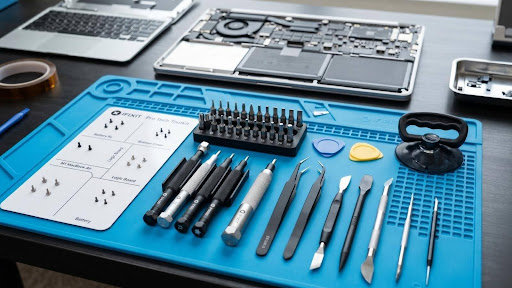
Pre-built kits save you the headache of cherry-picking individual tools. Here’s how to pick the right one without overpaying.
| Budget | Kit Type | Best For | Price Range |
| Under $20 | Basic 5 to 6 piece sets (TECKMAN, MINGFIX) | One-time battery or SSD swap | $12 to $20 |
| $20 to $40 | 25-piece precision kits (Jorest, oGoDeal) | Occasional repairs, multiple Apple devices | $20 to $40 |
| $40 to $80 | 100+ piece magnetic bit kits (XOOL, Kaisi) | DIY hobbyists, multiple devices | $40 to $80 |
| $80 to $200+ | iFixit Pro Tech Toolkit, Mako Driver Kit | Frequent repairs, semi-pro work | $80 to $200+ |
What to look for in any kit
- Magnetic tips that actually hold screws (cheap kits fail here)
- S2 steel bits, not generic metal that strips on the first turn
- Anti-roll handles so tools don’t slide off your workbench
- Storage case with labeled slots, since loose bits get lost fast
The clear winners by use case
- One-and-done repair: A $15 MacBook-specific kit gets the job done. Don’t overspend.
- Multiple Apple devices (iPhone, iPad, MacBook): The iFixit Mako Driver Kit ($35) covers nearly every Apple bit.
- Going pro: iFixit Pro Tech Toolkit ($75) is the industry standard for a reason.
Pro tip: Avoid Amazon kits with 4,000+ reviews and a 3.5 star average. The “deal” usually means stripped bits within 5 uses.
If you’re staring at the shopping cart, wondering if it’s worth it, our MacBook repair team fixes most issues for less than a mid-tier kit costs.
Apple Screwdriver Bits Decoded
Apple loves proprietary screws. They’re not just being difficult; they’re keeping casual tinkerers out. Here’s the cheat sheet for every bit you’ll actually need:
Pentalobe (5-point star)
- P2 (1.5mm): iPhone 4 and a few older Apple Watch models
- P5 (1.2mm): Bottom case of every MacBook Air and Retina MacBook Pro (2012 to present)
- P6 (1.5mm): MacBook Pro 2009 to 2012 battery screws
Torx (6-point star)
- T3: Tiny screws on hinges, trackpad brackets, and some logic board components
- T5: The MVP. Motherboard, fans, SSDs, and trackpads on most modern MacBooks
- T6: Older MacBook Pro internal screws (pre-2016)
- T8 and T10: Hinge screws on larger MacBook Pro models
Tri-Point (Y-shaped, 3 wings)
- Y0 (Y000): Battery bracket screws on most MacBook Pro and Air models
- Y00: Apple Watch internals and some MacBook component-level work
Phillips
- PH000 and PH00: Some internal components on older MacBook Pros
- Mostly used inside drives and accessory parts, not the chassis
Quick model match
| MacBook | Bottom Case | Battery | Internals |
| MacBook Air (2018+) | P5 | Y0 | T3, T5 |
| MacBook Pro 13″ (2016+) | P5 | Y0 | T3, T5 |
| MacBook Pro 14″/16″ M-series | P5 | Y0 | T3, T5 |
| MacBook Pro (2009 to 2012) | Phillips | P6 | T6, T8 |
Always match the bit to the screw before applying torque. Strip one of these proprietary screws and you’ll need a $30 extraction kit to recover.
Safety Gear DIY Guides Skip
Most “essential tools” lists stop at screwdrivers. Then your hand brushes a swollen battery, sparks a short, and your $1,500 MacBook becomes a paperweight. Or worse, a fire.
Here’s the protection most beginners overlook:
Anti-static wrist strap
Static electricity from your body can fry sensitive chips on the logic board. A $5 wrist strap clipped to a grounded surface neutralizes it. Non-negotiable for anyone touching internals.
ESD-safe mat
Sits under your MacBook during repair and provides a grounded work surface. Adds another layer of static protection and stops parts from rolling off the table. Around $15 to $25.
Magnetic project mat
Holds every screw exactly where you removed it. The unsung hero of MacBook repairs, where one missing screw can take 20 minutes to track down.
Battery puncture-safe workspace
Lithium-ion batteries can catch fire if punctured. Keep a metal pan or sand bucket nearby for any battery swap. Never pry directly on top of the battery.
Safety glasses
Glass screens and battery cells can shatter or rupture under stress. A $5 pair of safety glasses protects your eyes from flying shards or chemical leakage.
A well-lit, clean workspace
Crumbs, dust, and pet hair can wreck a logic board. Work on a clean, hard surface with strong overhead lighting and a clear path to a sink.
Pro tip: Always fully discharge the battery to under 25% before opening any modern MacBook. A drained lithium-ion cell is far less dangerous if accidentally punctured.
For repairs where the safety gear alone costs more than the fix at a shop, the math gets simple. iPhone Repair 4 Less handles those jobs with the right gear and the experience to use it.
When to Call a Pro Instead
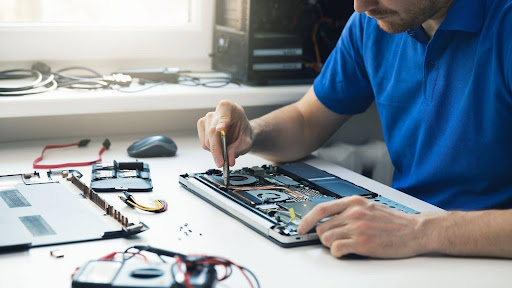
Some MacBook repairs are weekend-warrior territory. Others are quick paths to a $2,000 mistake. Knowing the difference saves your wallet and your sanity.
DIY-friendly repairs
- Battery replacement on pre-2018 MacBooks (screwed-in, not glued)
- SSD upgrades on 2012 to 2015 models with user-replaceable storage
- RAM upgrades on 2008 to 2012 MacBook Pros
- Fan and thermal paste replacements on most Intel-era machines
- Keyboard cleaning under existing keys
Hand it to a pro
- Logic board repairs of any kind (micro-soldering territory)
- Screen replacements on M-series MacBooks (sealed display assemblies)
- Liquid damage beyond a quick power-off
- Battery swaps on 2018+ MacBooks (glued cells, fire risk)
- Charging port repairs that involve board-level work
- Anything still under AppleCare+ since DIY voids coverage instantly
The honest break-even math
If your DIY cost adds up to more than 60% of a pro repair, hand it off. Tools, parts, and your hours all count. A pro who’s done a thousand of these swaps will do yours in 30 minutes with better warranty coverage.
For everything on the “call a pro” list, iPhone Repair 4 Less handles it with free diagnosis and a 1-year warranty. No risk of bricking your machine. No surprise costs.
Skip the Tool Hunt With iPhone Repair 4 Less
Building the right MacBook tool kit isn’t about owning the most pieces. It’s about owning the right ones for your model, your repair, and your skill level. Stay smart about what you actually need:
- Just 7 core tools handle most common MacBook repairs
- Pre-built kits run from $15 budget sets to $200+ pro kits
- Apple’s screws need P5, T5, T3, and Y0 bits at minimum
- Safety gear like wrist straps and ESD mats protects your MacBook and your wallet
- Logic boards, M-series screens, and glued batteries belong with the pros
When the repair list outgrows your toolbox, iPhone Repair 4 Less takes over from there. Free diagnosis, walk-in service, and a 1-year warranty on every fix. We’ve got the bits, the gear, and the years behind us to handle it right.
Frequently Asked Questions
What tools do I need to repair a MacBook?
You need a P5 pentalobe, T5 Torx, T3 Torx, Y0 tri-point, plastic spudger, precision tweezers, and suction cup or opening picks for most MacBook repairs.
What screwdriver opens a MacBook Pro?
A P5 pentalobe screwdriver (1.2mm) opens the bottom case on every MacBook Pro from 2012 onward. Older models use Phillips screws.
Is the iFixit toolkit worth it?
Yes, for frequent repairs. The iFixit Pro Tech Toolkit ($75) covers nearly every Apple device. For one-time MacBook fixes, a $15 to $20 basic kit works fine.
Can I repair my MacBook without special tools?
No. MacBook screws use proprietary pentalobe and tri-point bits that standard screwdrivers won’t fit. Trying to force them strips the screws.
Do I need an anti-static wrist strap for MacBook repair?
Yes. Static electricity can fry MacBook logic board chips instantly. A $5 wrist strap is cheap insurance against a $500+ board repair.

Write a Comment